Lesson-297
Translation made by MARION

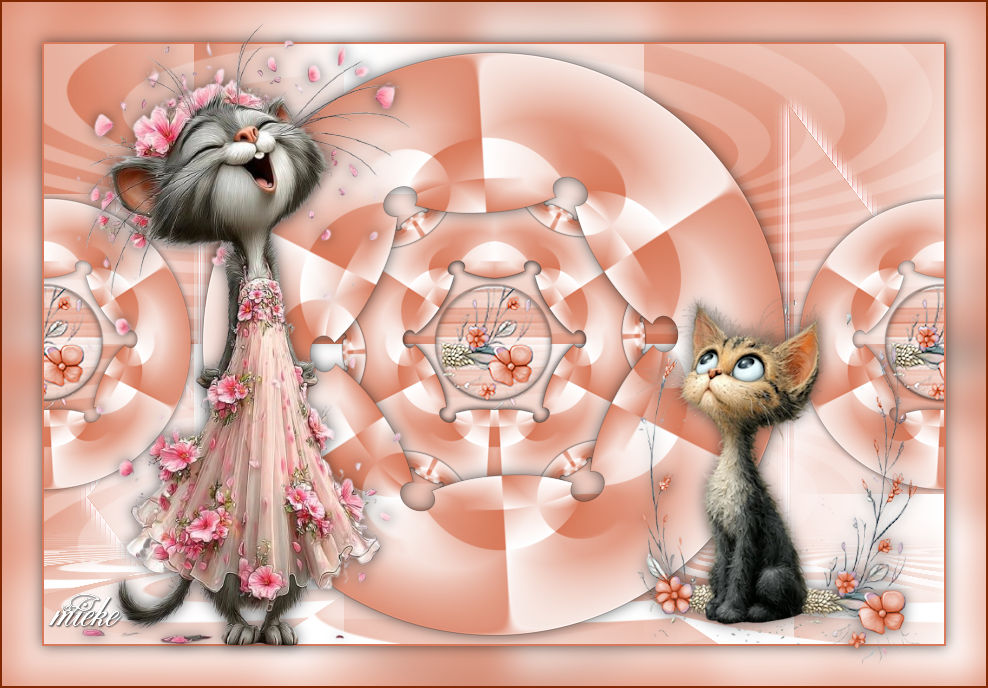
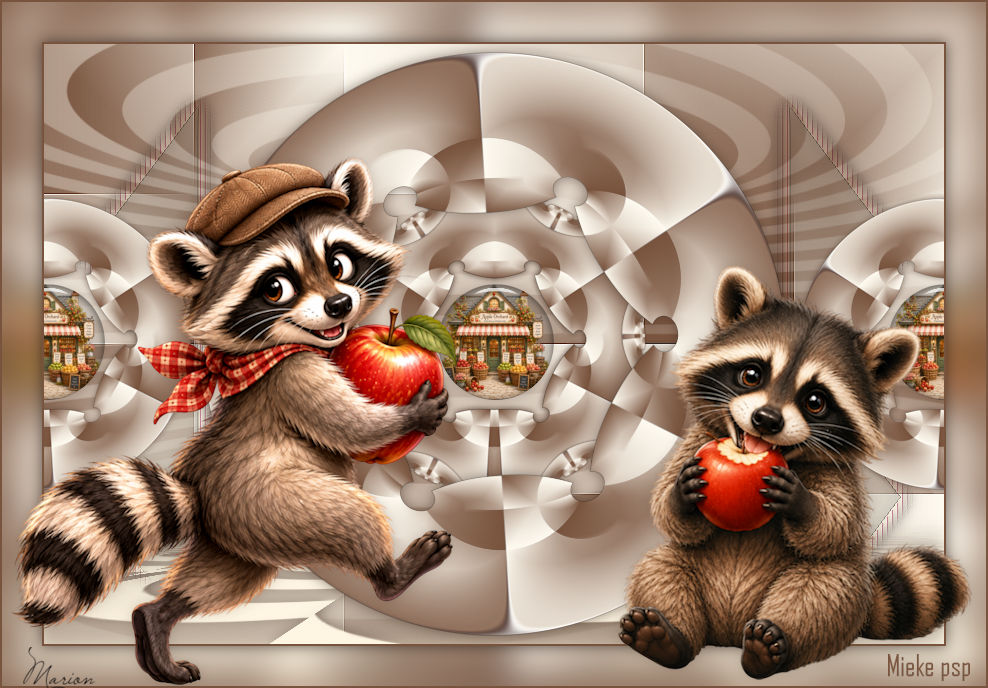
Materiaal

Filters
filter---Mehdi---Sorting Tiles
filter---Mehdi---Sorting Tiles
filter---Flaming Pear---Flexify 2
Material Properties ---Foreground color #d87a5b---Background color #ffffff
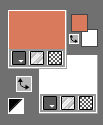
Replace your foreground with a foreground/background linear gradient configured like this
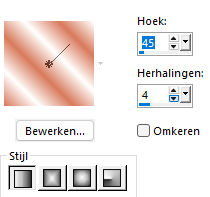
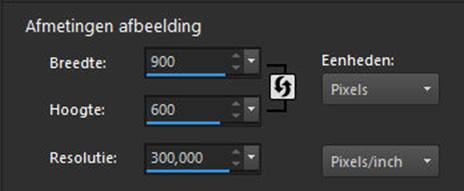
File---Open a new transparent image in this size
1.
Width---900---Height---600.
2.
Activate Flood Fill Tool – Fill the layer with the gradient
3.
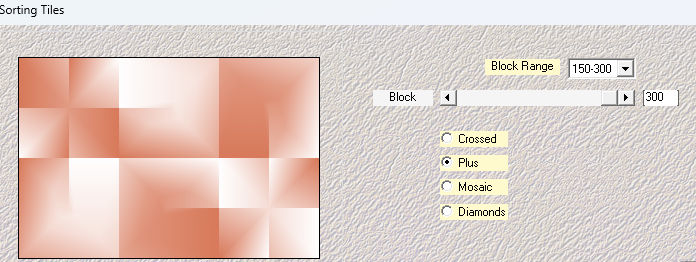
Effects---Plugins---Mehdi---Sorting Tiles---150---300---Block 300---Plus.
4.
Effects---Edge Effects---Enhance.
5.
Layers – New Raster Layer
Flood Fill Tool - Fill the layer with #ffffff (white)
6.
Open --- Mask --- creatio.tine_masque327.pspimage---CLICK on the minus sign in the upper right corner
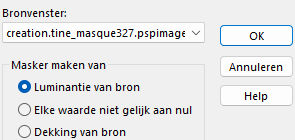
Layers---New Mask Layer---From Image---Select creatio.tine_masque327.pspimage
---Source Luminance checked
Layers---Merge---Merge Group
7.
Layers---Properties--- Reduce the opacity of this layer to---40%
8
Layers---Duplicate---
Layers---Properties---Opacity---100%
9.
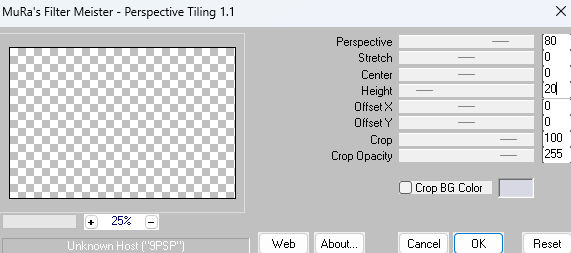
Effects---Plugins---Mura's Meister---Perspective Tiling---Height set to 20
10.
Activate the Magic Wand Tool -Tolerance 0 --- Feather 40.
With the magic wand, click in the empty area— Press the delete key on your keyboard five times.
Selections---Select None
11.
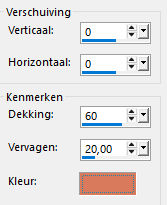
Effects---3D Effects---Drop Shadow
---0---0---60---20--- Foreground color
12.
Open---Deco-1
Edit---Copy
Activate your work ---Edit - Paste as new layer
Layers---Properties--- Set the blend mode to Screen
13.
Activate Raster 1 in the layer palette
Layers---Duplicate
Layers---Arrange ---Bring to Top
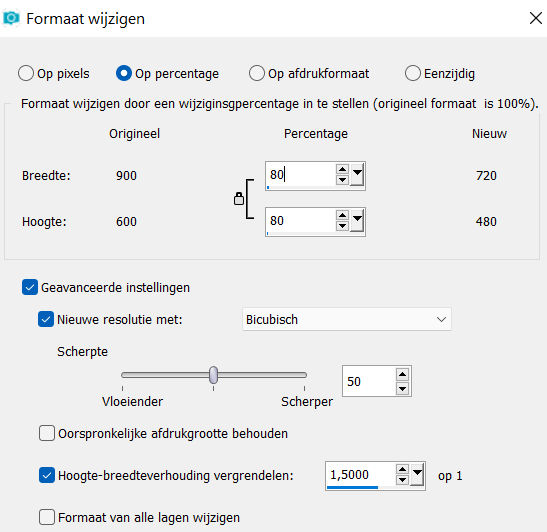
Image---Resize---80%---
Resize all layers not checked.
14.
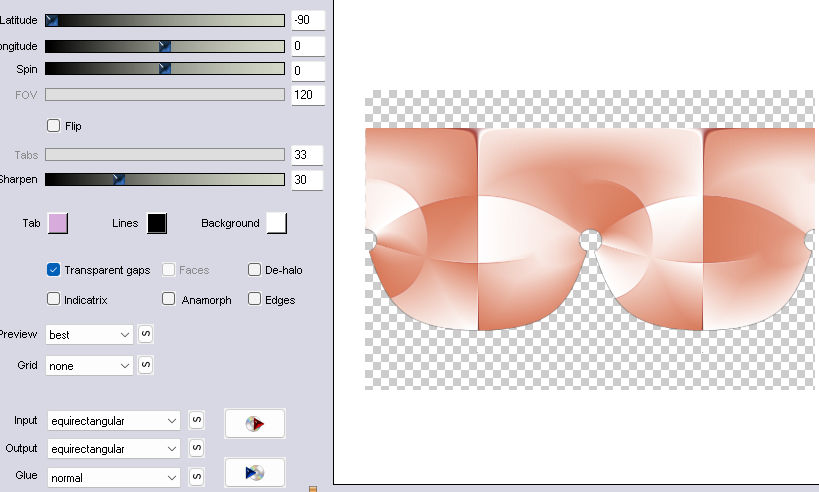
Effects---Plugins---Flaming Pear---Flexify 2--- min 90-----0---0---120---Input---equirectangular---Output--- equirectangular ---rest default.
15.
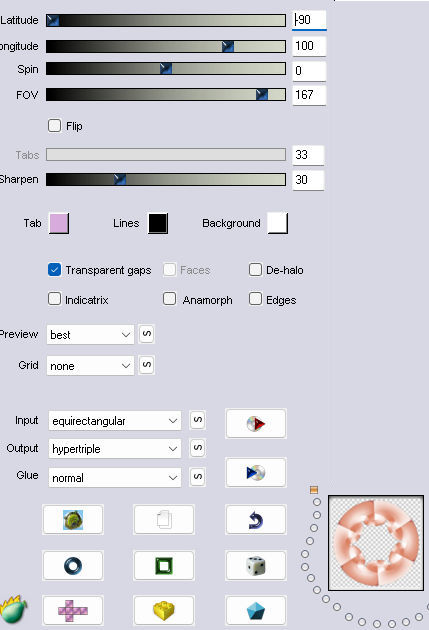
Effects---Plugins---Flaming Pear---Flexify 2--- min 90-----100---0---167---Input---equirectangular---Output---hypertriple ---rest default.
16.
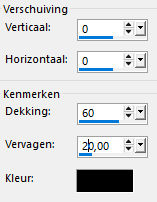
Effects---3D Effects---Drop Shadow ---0---0---60---20---Color #00000 (black)
17.
Layers---Duplicate
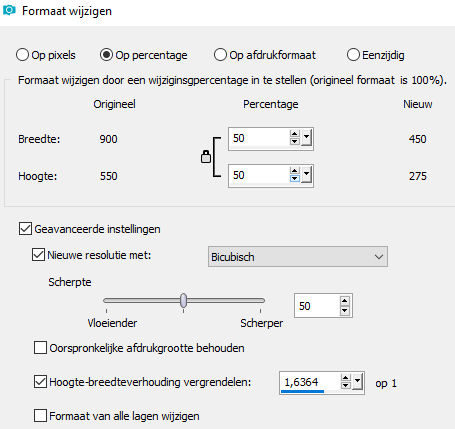
Image---Resize---50%--- Resize all layers not checked.
18.
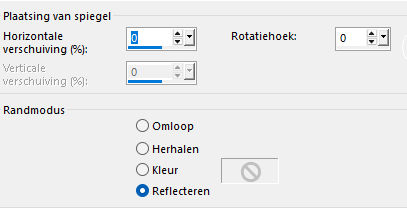
Effects---Reflection Effects---Rotating Mirror---Default
19.
Layers---Duplicate
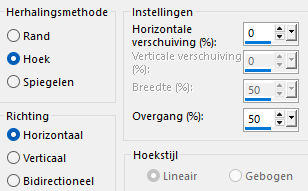
Effects---Image Effects---Seamless Tiling---Corner---Horizontal---0---x---x---50
20
Layers---Duplicate
Effects---Plugins---Flaming Pear---Flexify 2--- min 90-----100---0---167---Input---equirectangular---Output---hypertriple ---rest default.
21.
Activate---Copy of Raster 1 in the layer palette
Layers---Arrange ---Bring to Top
22.
Open---Deco-2
Edit --- Copy ---
Activate your work ---Edit - Paste as new layer
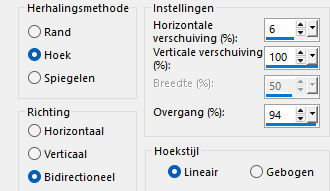
Effects---Image Effects---Seamless Tiling
---Corner---Horizontal---0---x---x---50
23.
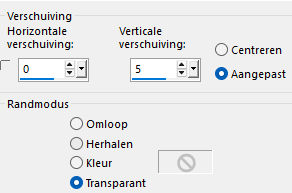
Effects---Image Effects---Offset---0---5—Transparent
24.
Image---Add Borders---2 pixels---Foreground Color
Edit --- Copy
Selections---Select All
Image---Add Borders---40 pixels---#ffffff (white)
Selections---Invert
Edit---Paste into Selection.
25
Adjust---Blur---Gaussian Blur--- Radius 15.
Selections---Invert
Repeat the drop shadow---0---0---60---20--- #000000 (black)
Selections ---Deselect All
26.
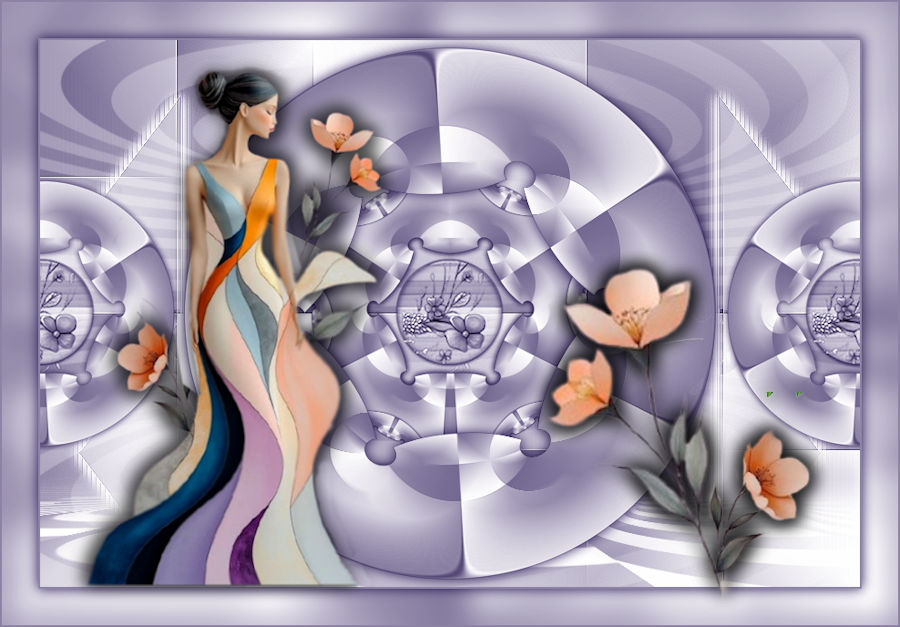
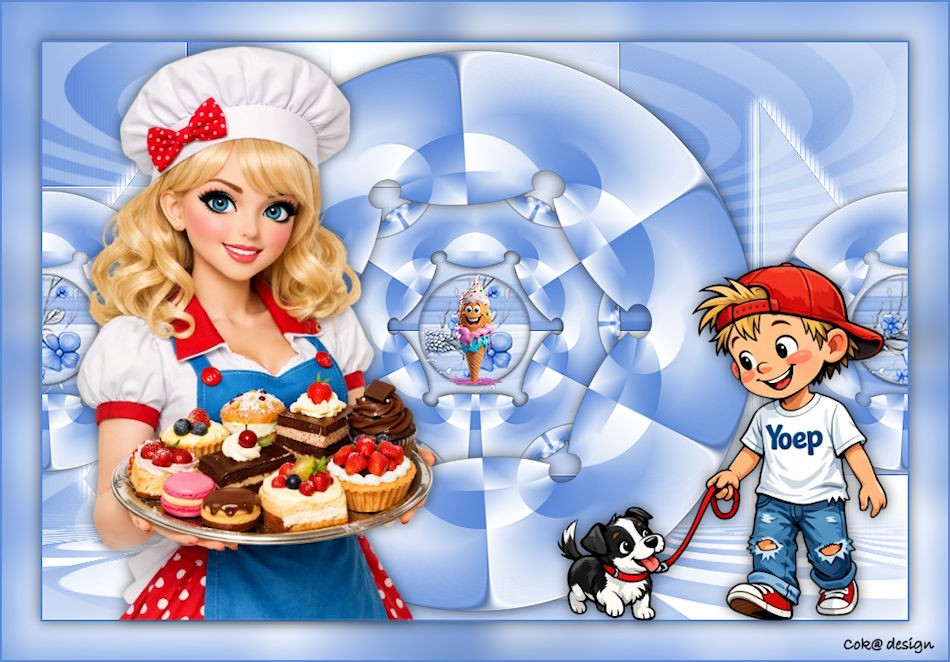
Open Tube--- 5d08-removebg-preview.png
Edit---Copy
Activate your work ---Edit - Paste as new layer
Move to the left. (or use your own Tube)
Apply a drop shadow as desired
27.
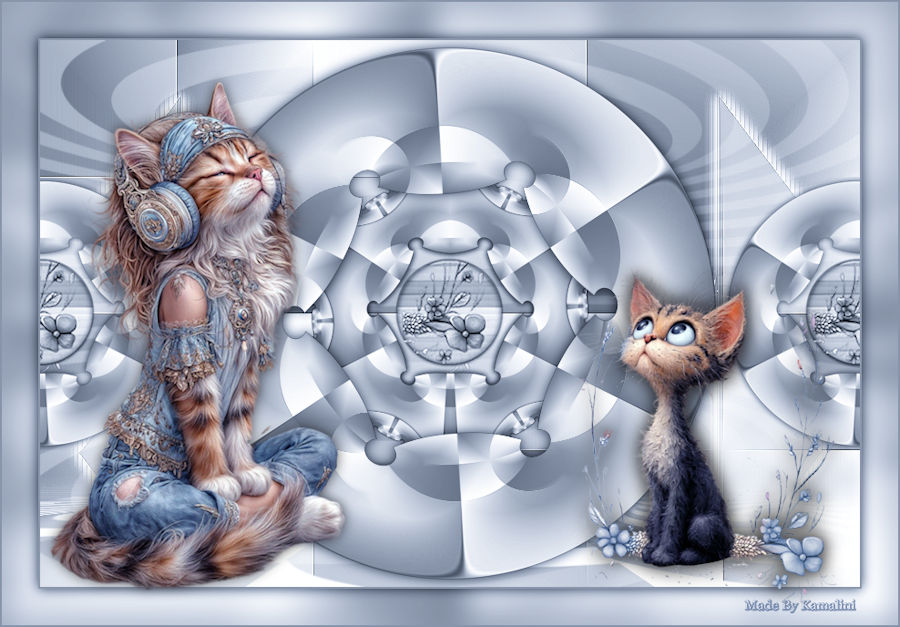
Open Tube--- poes-297.png
Edit---Copy
Activate your work ---Edit - Paste as new layer
Move to the right. (or use your own Tube)
Add a drop shadow as desired.
Image---Add Borders---2 pixels---Foreground color
Place your watermark on a new layer.
Save as a JPEG.

|